Sunday, 12 October 2014

How to connect to Oracle 12c database using Python.

Python is an indent based language. Does not contain any begin or end like if / end if, loop / end loop.
Beginning of scope is in hanging indent and the entire scope is indented.

Like
>>if(codition)
>>     staterment 
>>     staterment

Just look into the indent for the statement below if condition.

Now about oracle client library in python.
You can download oracle client cx_Oracle  from here : https://pypi.python.org/pypi/cx_Oracle/5.1.3.

cx_Oracle-5.1.3-11g.win-amd64-py2.7.exe (md5) MS Windows installer 2.7 2014-05-25 323KB
cx_Oracle-5.1.3-11g.win-amd64-py3.3.exe (md5) MS Windows installer 3.3 2014-05-25 322KB
cx_Oracle-5.1.3-11g.win-amd64-py3.4.exe (md5) MS Windows installer 3.4 2014-05-25 322KB
cx_Oracle-5.1.3-11g.win32-py2.7.exe (md5) MS Windows installer 2.7 2014-05-25 288KB
cx_Oracle-5.1.3-11g.win32-py3.3.exe (md5) MS Windows installer 3.3 2014-05-25 283KB
cx_Oracle-5.1.3-11g.win32-py3.4.exe (md5) MS Windows installer 3.4 2014-05-25 282KB
cx_Oracle-5.1.3-12c.win-amd64-py2.7.exe (md5) MS Windows installer 2.7 2014-05-25 323KB
cx_Oracle-5.1.3-12c.win-amd64-py3.3.exe (md5) MS Windows installer 3.3 2014-05-25 322KB
cx_Oracle-5.1.3-12c.win-amd64-py3.4.exe (md5) MS Windows installer 3.4 2014-05-25 322KB
cx_Oracle-5.1.3-12c.win32-py2.7.exe (md5) MS Windows installer 2.7 2014-05-25 288KB
cx_Oracle-5.1.3-12c.win32-py3.3.exe (md5) MS Windows installer 3.3 2014-05-25 283KB
cx_Oracle-5.1.3-12c.win32-py3.4.exe (md5) MS Windows installer 3.4 2014-05-25 282KB
cx_Oracle-5.1.3.tar.gz (md5) Source 2014-05-25 102KB

Just choose according to your version of python installed.

Install it in your machine if you are using Windows 32 bit download win32-py else if you are using Windows 64 bit  download win-amd64-py.

Here is the sample code below which will help you to connect to Oracle.

#---------------------------------------------------------------------------------------------------
import cx_Oracle
# con = cx_Oracle.connect('username/password@[ipaddress or hostname]/SID')
# for example con = cx_Oracle.connect('scott/tiger@127.0.0.1/orcl')
# Above 2 lies are format of connection string and sample connection string.
# Below is the actual connection string I have used. orcl.localdomain is the service name you have configured with net config assistant in oracle databsae server.

con = cx_Oracle.connect('hr/hr@192.168.0.109/orcl.localdomain')
cur = con.cursor()
cur.execute('select section_code,section_name from section_master order by 2')

for row in cur:

     print(row)
#closing all opened objects
file.close()
cur.close()
con.close()
print("File successfully exported")

#---------------------------------------------------------------------------------------------------

Please comment if you have any queries.
You can also find video tut0rialfor this lesson inhttps://www.youtube.com/watch?v=w3WVqn3WySs
Also you can subscribe to my youtube channel https://www.youtube.com/subhro190776

How to export data from Oracle 12c database using python 3.4


oracle tutorial
Python is an indent based language. Does not contain any begin or end like if / end if, loop / end loop. Beginning of scope is in hanging indent and the entire scope is indented.


Like
>>if(codition)
>>     staterment 
>>     staterment 

Just look into the indent for the statement below if condition.

Now about oracle client library in python.
You can download oracle client cx_Oracle  from here : https://pypi.python.org/pypi/cx_Oracle/5.1.3.

cx_Oracle-5.1.3-11g.win-amd64-py2.7.exe (md5) MS Windows installer 2.7 2014-05-25 323KB
cx_Oracle-5.1.3-11g.win-amd64-py3.3.exe (md5) MS Windows installer 3.3 2014-05-25 322KB
cx_Oracle-5.1.3-11g.win-amd64-py3.4.exe (md5) MS Windows installer 3.4 2014-05-25 322KB
cx_Oracle-5.1.3-11g.win32-py2.7.exe (md5) MS Windows installer 2.7 2014-05-25 288KB
cx_Oracle-5.1.3-11g.win32-py3.3.exe (md5) MS Windows installer 3.3 2014-05-25 283KB
cx_Oracle-5.1.3-11g.win32-py3.4.exe (md5) MS Windows installer 3.4 2014-05-25 282KB
cx_Oracle-5.1.3-12c.win-amd64-py2.7.exe (md5) MS Windows installer 2.7 2014-05-25 323KB
cx_Oracle-5.1.3-12c.win-amd64-py3.3.exe (md5) MS Windows installer 3.3 2014-05-25 322KB
cx_Oracle-5.1.3-12c.win-amd64-py3.4.exe (md5) MS Windows installer 3.4 2014-05-25 322KB
cx_Oracle-5.1.3-12c.win32-py2.7.exe (md5) MS Windows installer 2.7 2014-05-25 288KB
cx_Oracle-5.1.3-12c.win32-py3.3.exe (md5) MS Windows installer 3.3 2014-05-25 283KB
cx_Oracle-5.1.3-12c.win32-py3.4.exe (md5) MS Windows installer 3.4 2014-05-25 282KB
cx_Oracle-5.1.3.tar.gz (md5) Source 2014-05-25 102KB

Just choose according to your version of python installed.

Install it in your machine if you are using Windows 32 bit download win32-py else if you are using Windows 64 bit  download win-amd64-py.

Here is the sample code below which will help you to connect to Oracle and export csv data.

#---------------------------------------------------------------------------------------------------
import cx_Oracle
# con = cx_Oracle.connect('username/password@[ipaddress or hostname]/SID')
# for example con = cx_Oracle.connect('scott/tiger@127.0.0.1/orcl')

# Above 2 lies are format of connection string and sample connection string.
# Below is the actual connection string I have used. orcl.localdomain is the service name you have configured with net config assistant in oracle databsae server.

con = cx_Oracle.connect('hr/hr@192.168.0.109/orcl.localdomain')
cur = con.cursor()
cur.execute('select section_code,section_name from section_master order by 2')
# using inbuilt open function to create new /open existing file for writing
file = open("file.csv", "w")
for row in cur:
# row[0] and row[1] where 0 and 1 are index of row cursor.
file.write(row[0] + ',' + row[1] + '\n')
#closing all opened objects
file.close()
cur.close()
con.close()
print("File successfully exported")

#---------------------------------------------------------------------------------------------------

Please comment if you have any queries.
You can also find video tut0rialfor this lesson in https://www.youtube.com/watch?v=85WoKxiEC-E
Also you can subscribe to my youtube channel https://www.youtube.com/subhro190776

Connect to Oracle 12c release 1 using PHP

All you need is WAMP Server, I am usig version 2.5.

You can download it from http://sourceforge.net/projects/wampserver/files/latest/download

After installing wamp server  goto php.ini file located in wamppath\apache\apacheversion\bin\php.ini

The wamp path  is the path where the wamp is installed.
The directory apacheversion is named as the version you have installed. i.e. apache2.4.9
After opening php.ini (say in notepad) search for string oci, you will find
;extension=php_oci8.dll
;extension=php_oci_11g.dll
If you are using Oracle version <=10g, un-comment extension=php_oci8.dll (remove ; from begining)
Else if you are using 11g then un-comment extension=php_oci8_11g.dll
But if you are using 12c you need to add a line in the file, extension=php_oci8_12c.dll.
You will also need to download php_oci8_12c.dll . It can be downloaded in zipped format containing all dll's from version 8 to 12.
Link for the client download : http://windows.php.net/downloads/pecl/releases/oci8/2.0.8/.

I am giving you the links, you need to download your needed version like if you  have php 5.4 in 64 bit OS download  php_oci8-2.0.8-5.5-nts-vc11-x64.zip 

Wednesday, March 12, 2014  7:27 PM       566414 php_oci8-2.0.8-5.3-nts-vc9-x86.zip
Wednesday, March 12, 2014  7:31 PM       579365 php_oci8-2.0.8-5.3-ts-vc9-x86.zip
Wednesday, March 12, 2014  7:20 PM       562128 php_oci8-2.0.8-5.4-nts-vc9-x86.zip
Wednesday, March 12, 2014  7:23 PM       577956 php_oci8-2.0.8-5.4-ts-vc9-x86.zip
Wednesday, March 12, 2014  7:06 PM       575229 php_oci8-2.0.8-5.5-nts-vc11-x64.zip
Wednesday, March 12, 2014  7:13 PM       564670 php_oci8-2.0.8-5.5-nts-vc11-x86.zip
Wednesday, March 12, 2014  7:09 PM       589774 php_oci8-2.0.8-5.5-ts-vc11-x64.zip
Wednesday, March 12, 2014  7:16 PM       579897 php_oci8-2.0.8-5.5-ts-vc11-x86.zip
Thursday, April 10, 2014 11:03 PM       584008 php_oci8-2.0.8-5.6-nts-vc11-x64.zip
Thursday, April 10, 2014 10:55 PM       573662 php_oci8-2.0.8-5.6-nts-vc11-x86.zip
Thursday, April 10, 2014 11:07 PM       593400 php_oci8-2.0.8-5.6-ts-vc11-x64.zip
Thursday, April 10, 2014 10:59 PM       581718 php_oci8-2.0.8-5.6-ts-vc11-x86.zip
 
Extract the files in wamppath\bin\php\phpversion\ext\ directory 
i.e. C:\wamp\bin\php\php5.5.12\ext\

Restart your service.
Make sure your Oracle service ad Listener service is Up and running.

Here is the sample code to connect to Oracle
//===============================================================
<?php
//$conn=oci_connect('userame','password','hostname/oracle_servicename');

/*username and password is your database username (schema name) and password
hostname can be computer netbios name or ip address, i prefer ip address. oracle service name is the service name you have created in you database server through net configuration assistant.
*/
$conn=oci_connect('hr','hr','192.168.0.109/orcl.localdomain');
//orcl.localdomain is my oracle service name

if($conn)
    echo "Connection succeded";
else
{
    echo "Connection failed";
    $err = oci_error();
    trigger_error(htmlentities($err['message'], ENT_QUOTES), E_USER_ERROR);   
}
?>
<table border=1 cellpadding=5><tr><td> Section Code</td><td>Section Name</td></tr>
<?php 
// table name column names are samples.
    $stid = oci_parse($conn, 'SELECT section_code, section_name FROM section_master');
    oci_execute($stid);
    while (($row = oci_fetch_array($stid, OCI_BOTH)) != false) {
?>
  <tr>
<!-- Rows are printed by index starting from zero in order they are put in the select statement. -->
    <td><?php echo $row[0] ?></td>
    <td><?php echo $row[1] ?></td>
  </tr>
<?php
}
// Frre variables from memory and close connection object.
oci_free_statement($stid);
oci_close($conn);
//http://windows.php.net/downloads/pecl/releases/oci8/2.0.8/php_oci8-2.0.8-5.5-ts-vc11-x64.zip   
?>
</table>   
?>
//===============================================================

Try this code. It's very interesting. You will enjoy connecting to oracle database using php, it's  so flexible.

If you have any queries do comment.
You can find video tutorial on https://www.youtube.com/subhro190776


Friday, 5 September 2014

How to change font size in HTML page dynamically using Java Script.

 How to change font size in HTML page dynamically using Java Script.

<!DOCTYPE html>
<html>
<head>
</head>
<body onload="populatecombo()">
<p>Click "Try it" to display the value.</p>
<div id="combodiv"></div>
<br><br>
<div id="demo">Font width changed</div>

<script>

function populatecombo()
{
var s="Select width : <select id='combo' onchange='myFunction()'>";
for(var i=1;i<=100;i++)
s+="<option id=" + i + " value=" + i + ">" + i + "</option>";
s+="</select>";
document.getElementById("combodiv").innerHTML=s;
document.getElementById("combo").value=10;
document.getElementById("demo").style.font = "italic small-caps bold " + document.getElementById("combo").value + "px  arial, sans-serif";
}

function myFunction()
    {
        document.getElementById("demo").style.font = "italic small-caps bold " + document.getElementById("combo").value + "px  arial, sans-serif";
    }

</script>

</body>
</html>

Thursday, 4 September 2014

How to create a trance fm gadget using VB6

This is a simple VB6 program that embed one html file in resource in the application that contains
code that retrieves the online gadget of trance.fm.

Here is the HTML code

<html>
<body background="E:\earth-from-space-high-resolution-8909-hd-wallpapers.jpg">
<div>
<table border="0" cellpadding="0" cellspacing="0" align="center" width=100%>
<tbody>
<tr>
<td align="center" valign="middle">
<iframe id="view_frame" name="view_frame" style="border: 3px double rgb(201, 201, 201)" allowtransparency="true" scrolling="no" src="http://desktopify.com/view.php?widget=Trance Fm widget" frameborder="0" height="68" width="256">
Browser don't support frames
</iframe></td>
</tr>
</tbody></table>
</div>
</body>
</html>

Now you need to save this into one HTML file and add it into application through VB resource
editor.

And here is the form source code. I have given the source code link also below the form source code.

Private Declare Function ReleaseCapture Lib "user32" () As Long
Private Declare Function SendMessage Lib "user32" Alias "SendMessageA" (ByVal hwnd As Long, ByVal wMsg As Long, ByVal wParam As Long, lParam As Any) As Long
Const WM_NCLBUTTONDOWN = &HA1
Const HTCAPTION = 2

Private Sub Form_Load()
    'WB1.Navigate2 "file:///C:/Documents%20and%20Settings/User/Desktop/trancfm.html"
    WB1.Navigate "res://" & App.EXEName & ".exe/HTML/101"
End Sub

Private Sub Image1_Click()
    End
End Sub

Private Sub Image1_MouseDown(Button As Integer, Shift As Integer, X As Single, Y As Single)
    End
End Sub

Private Sub Picture1_MouseDown(Button As Integer, Shift As Integer, X As Single, Y As Single)
    ReleaseCapture
    SendMessage Me.hwnd, WM_NCLBUTTONDOWN, HTCAPTION, 0
End Sub

Private Sub Picture1_MouseMove(Button As Integer, Shift As Integer, X As Single, Y As Single)
    If Button = 1 And Shift = 1 Then
    End If
End Sub

Private Sub Picture1_MouseUp(Button As Integer, Shift As Integer, X As Single, Y As Single)
    ReleaseCapture
    SendMessage Me.hwnd, WM_NCLBUTTONDOWN, HTCAPTION, 0
End Sub

Source code link :

Source Code

Monday, 4 August 2014

How to write recursive function in C++

// Video demonstration is on youtube : https://www.youtube.com/watch?v=9Wp_HUGJY-o
//Here is the program:
#include"stdio.h"
#include"conio.h"
void main()
{
void print_num(int);
void print_num_rev(int);
print_num(10);
printf("\n");
print_num_rev(10);
}
void print_num_rev(int n)
{
if(n<1)
return;
print_num_rev(n-1);
printf("%d,",n);
}

void print_num(int n)
{
if(n<1)
return;
printf("%d,",n);
print_num(n-1);
}

Saturday, 2 August 2014

How to build menu in Oracle Forms

This is a demonstration of how to build menu in oracle forms.

1. Select menus in object browser and click on new icon in toolbar.

new menu oracle forms

2.  Double click on menu


3. Rename it to MU_MASTER.


4. Right click o MU_MASTER and select Editor. Menu layout editor will be displayed. Double click
    on it to rename it.


 5. A caption Master is given to the menu.


 6. In selected state click on create down to create sub-menu under Master.


7. As many times you click on create dow sub-menu uder master will be created.


8. Selecting master click on click right to another header menu. If you select any sub-menu of master
   and click o select right then sub-menu of that master sub-menu will be created.


   9.  Again selecting transaction if you click o click down menu then sub-menu under transaction
       will be created.


   10. Now select Master in the layout editor and press F4 or right click and click properties.
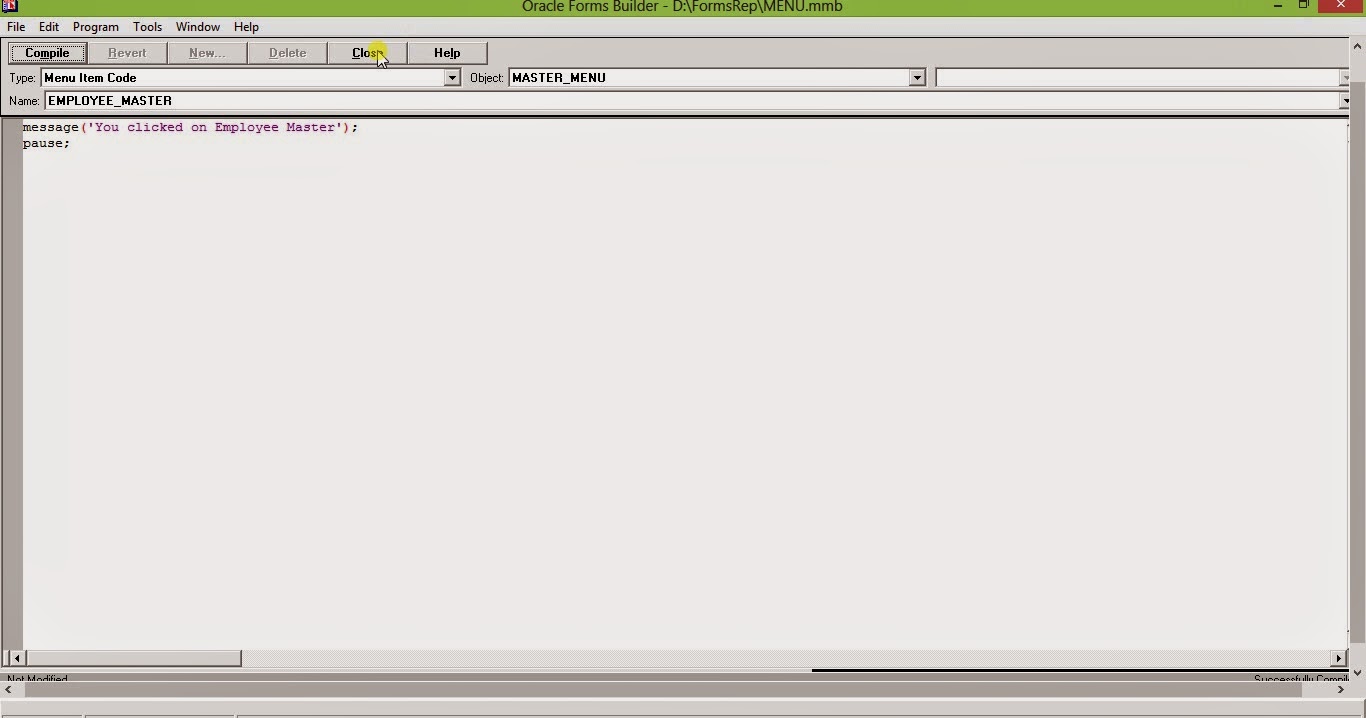
         Select command type from property palette and select PL/SQL to write trigger on this menu.


    11. After selecting PL/SQL from command type click on the button for Menu item code.


    13. Write your PL/SQL block for click event of the menu.


   14. Now create a form Test1.fmb, goto the form property palette and select File from Menu source.
         On the menu module property give the absolute path of your menu module.


    15. Press Ctrl + T to compile and make binary .fmx and ctrl+R to run the form. Build it and test it.

Friday, 1 August 2014

How to install Oracle 12c database release 1 in Windows 8.

This is a simple attempt to guide you how to install Oracle 12c release 1 on Windows 8 platform.

1. Please visit oracle.com site and navigate to download page. Link can be found in the picture below.
    please make an account into oracle.com and don't forget to sign in.


oracle download site


2. Accept License agreement and click on the Microsoft Windows x64 (64bit).

Oracle download Accept license agreement

3.  Download the 2 zipped files named win64_12c_database_1of2 and win64_12c_database_2of2
     and unzip the zip files. Copy/Move  the contents on win64_12c_database_2of2 to
    win64_12c_database_1of2.

Unzip downloaded setup


4. Open the win64_12c_database_1of2 folder. Right click on setup and click on run as administrator.

run oracle 12c setup


5. Wait for the setup to initiate.

setup initiating

6. If you need to be informed about security issue you can provide your email address. If you are
    subscribed for Oracle support provide your password.

configure security updates  
    7. I preferred to skip both the step.

software updates

    8. I also preferred to skip software updates.

inittialization options

    9. Select Create and configure database from Installation option if you are doing a fresh
        installation, Select Upgrade an existing database if previous version (i.e. 11g) is already
        installed in you machine.

grid istallation option

   10. Select desktop class if you are installing in you home pc.

install type

   11. You can use existing windows user or create new user if you want a different windows login for
         oracle software. If you select create ew windows user oracle will create new user for you.

oracle home user selection

    12. Set you installation location, database edition, character set.

typical installation

   13. Set your global database name, administrative password. Avoid create as container database.

typical installation

   14.  You can ignore the password warning.

typical installation

    15. Prerequisite check is performed by Oracle. Click on next.

prerequisite check

   16. Click on install if you don't wat to change any settings, if you edit ay setting you will be drive
         back to that step and have to navigate again.

install product

Wednesday, 9 July 2014

Microsoft.Windows.Server.2012.x64-iNDiSO Torrent Download

Microsoft.Windows.Server.2012.x64-iNDiSO Torrent Download

Torrent File Link


Magnetic Link

Hash : aec242e97c00222c6416a0fa65324630a2e3bb51

PL SQL Developer 9.0.6.1665 Torrent Download

PL SQL Developer 9.0.6.1665 Torrent Download

Torrent File Link

Magnetic Link

Hash : 6D5B1EDB166DF281087FB229D2142989B286362

Trackers : 14

VMware Workstation 10.0.1 Build 1379776 torrent download

VMware Workstation 10.0.1 Build 1379776 torrent download

Torrent File Link


Magnetic Link

Hash : 1FAFB578A4F129C17F1A7AF7EFEA1BE17C5C2146

Seeders : 836

Leechers : 41

EASEUS Partition Master 9.2.2 Server Professional Technican Unlimited Edition torrent download

EASEUS Partition Master 9.2.2 Server Professional Technican Unlimited Edition torrent download

Torrent File Download

Magnetic Link


Hash : 63858F5BBBA20880E65953A862ABDDED1D00A7BA

Tracker : udp://tracker.publicbt.com:80/announce

Subscribe to my YouTube Channel 

SQL Server 2005 64Bit Enterprise Edition Extended DVD torrent download.

SQL Server 2005 64Bit Enterprise Edition Extended DVD torrent download.

Torrent File link

Magnetic Link

Hash : 39660CA2EDA3B24041D26CFE278188C72D3563A1

Subscribe to my Youtube Link

Netscape Navigator 9.0.0.4 for Torrent download.

Netscape Navigator 9.0.0.4 for Torrent download.

Click to get torrent file
Torrent Link

Click to get magnetic link

Magnetic Link

Seeders   : 0
Leechers : 1

Torrent Link download to CentOS 6 0 i3686 DVD 32 Bit Edition linux .

Link to .torrent file.

Torrent File Link

Magnetic Link


Hash : A1C49AD6E1AF64414E88FFAB42DB8C0D270781F2

Torrent link for Oracle Database 11g Release 1 (11.1.0.6.0) Enterprise Edition for Linux x86.zip


Torrent link for Oracle Database 11g Release 1 (11.1.0.6.0) Enterprise Edition for Linux x86.zip

Click on this for torrent file  Link

Torrent Link

Click on this for Magnetic Link
Magnetic Link